Prerequisites
- Google Workspace account with Admin access.
- Users created/synced in Google Workspace
1. Configuration Steps
- SSO configuration in DAY2
- Application configuration in Google Workspace for SAML 2.0 SSO
- Assign users to application
2. Setup a Google Workspace Account
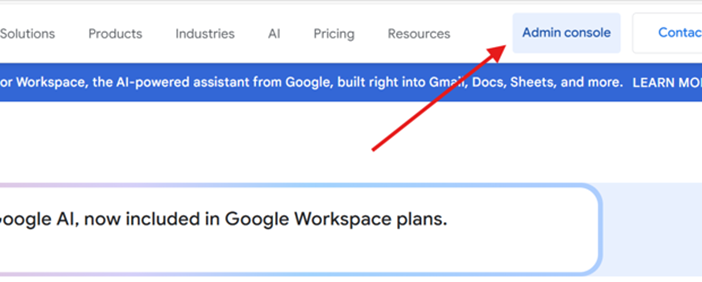
For testing, you may sign up for a trial account: Sign up for Google Workspace
A single trial account can be used to test across different DAY2 environments.
3. DAY2 SSO Configuration - Part 1
- In a new browser window or tab, Login to DAY2 as a Business Admin or Cloud Admin
- Navigate to Settings → Single Sign-On
- Select - Configure SSO
- Provide Profile Details:
- Name: a name of your choice (Example: Google Workspace SSO)
- Description
- Identity Provider: Select
Google - SAML 2.0from the list - Save and continue to the next step
- Service Provider - DAY2 SAML 2.0 Metadata
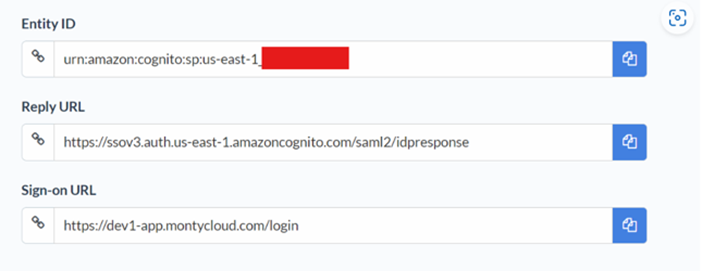
- You will need the following details shown on this screen to configure in Google Workspace.
- Entity ID
- Reply URL
- Sign-on URL
- You will need the following details shown on this screen to configure in Google Workspace.
- Stay on this page and in a new browser window or tab switch to Google Workspace to continue with the application configuration in Google Workspace.
4. Configure SAML 2.0 Application in Google Workspace
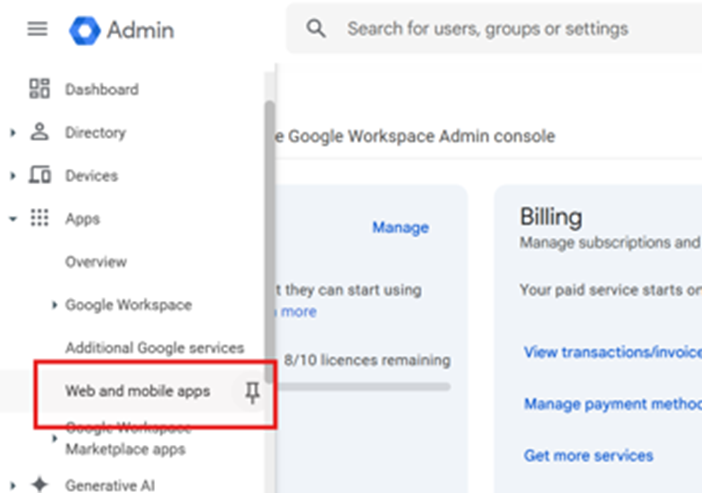
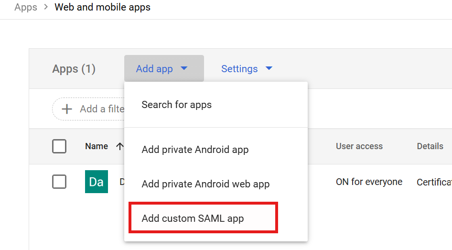
In the Google Workspace Admin Console, Navigate to Web and mobile apps section on the menu on the left
Select Add custom SAML app from the dropdown.
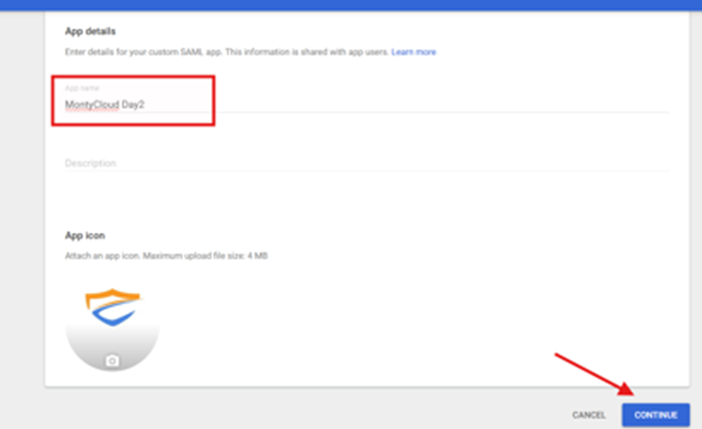
Enter your application details, provide any description if required and save the application
Configure Display Name as ‘MontyCloud DAY2’ (optional but recommended, can be changed later)
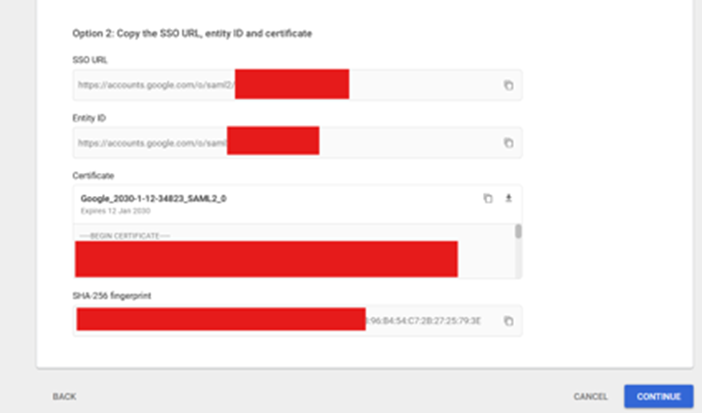
Review the details in the next page and click continue, the below details are read-only.
Provide the following details in the next screen
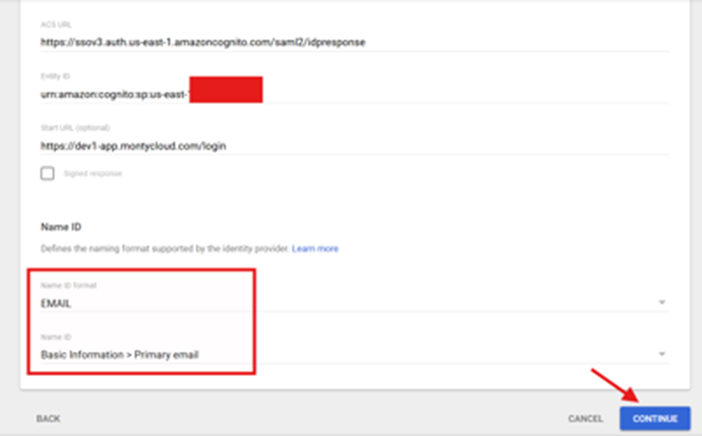
Specify the Name ID format as EMAIL and Name ID as Basic Information > Primary email
The following table shows the mapping of specific fields in Google Workspace with respect to MontyCloud Day2 in the above screen.
Google Workspace Attributes | MontyCloud Day2 Attributes | Attribute Value |
ACS URL | Reply URL |
|
Entity ID | Entity ID |
|
Start URL | Sign-on URL |
|
In the next screen, specify the attribute mapping, this is an important step and this mapping must match the mapping in Day2
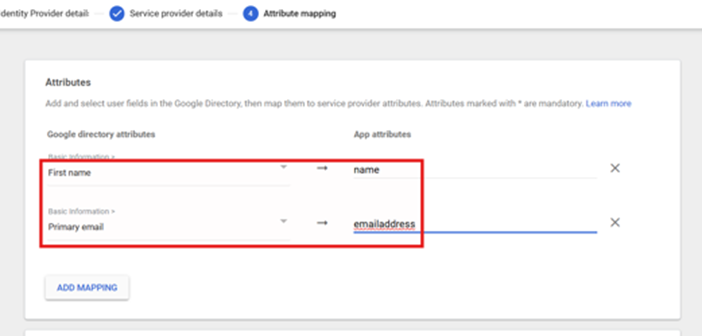
Google Attribute Name | MontyCloud Day2 Attribute Name |
First name | name |
Primary email | emailaddress |
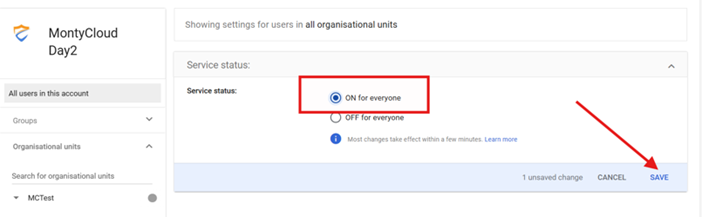
In the next screen, open the User access accordion and turn the details ON, this will make the app available for all the users you are managing in the google directory.
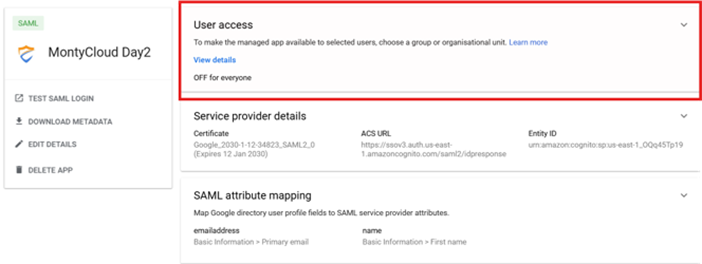
Once these details are provided, click on SAVE
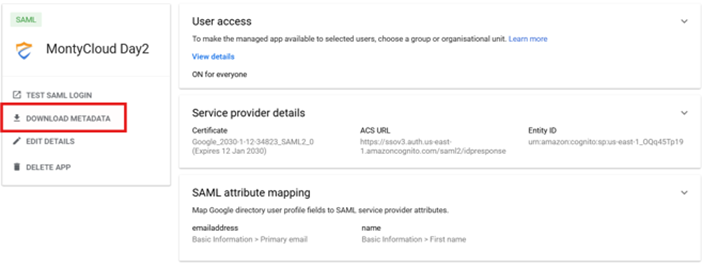
Once the details are provided, downloaded the SSO app’s metadata. This metadata must be uploaded on Day2 to setup the integration.
5. DAY2 SSO Configuration - Part 2
- In the SSO Configuration wizard, navigate to Identity Provider.
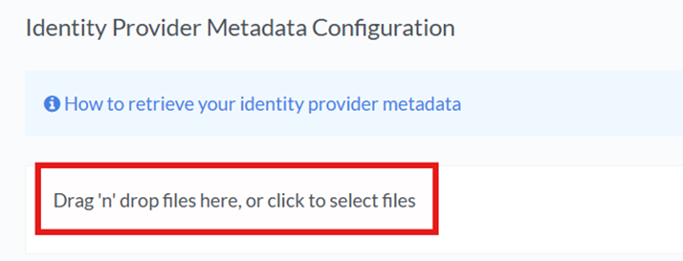
- Upload the Google SAML Metadata file downloaded in the previous step.
- Save & continue to the next step to configure domain.
- Provide domain associated with the SSO (use montycloud.com for testing on dev/stg)
- Verify the domain.
- Role Mapping: (optional) continue to select a default role for new users that may be provisioned via Google Workspace SSO.
- Review and Save the SSO configuration.
- You can now logout from Day2 and try to login using any user added in Google Workspace.
6. Verifying the app availability to users
- Navigate to Directory → Users
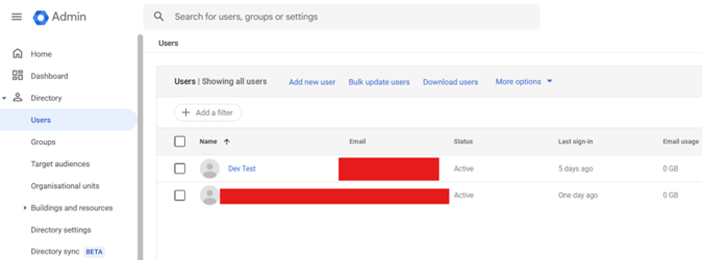
- Select the user, scroll down to the Apps section and open the accordion.
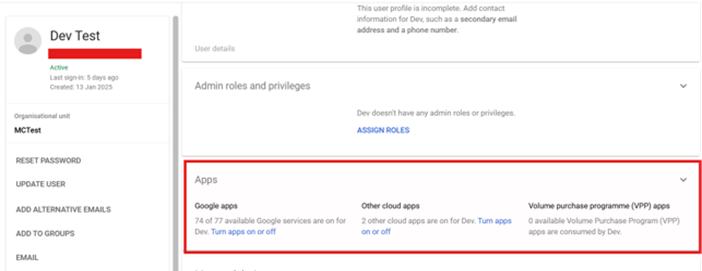
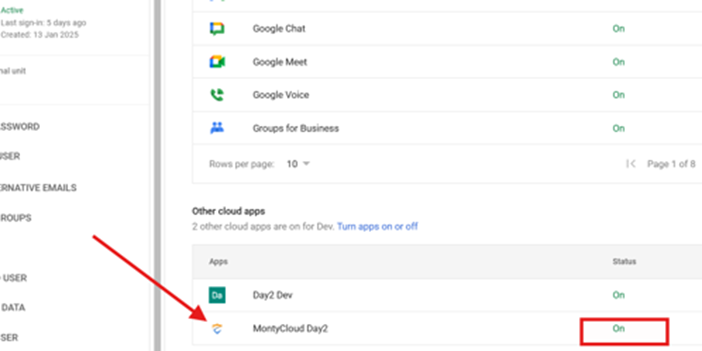
- You must be able to see the MontyCloud Day2 app you created and the Status must be set to On